Quick answers
What is Peilo?
Peilo is a companion app for time at your desk. The phone app keeps you company during sessions you choose and records moments it can observe. The optional desktop app helps you review AI activity and collaboration. You do not need to buy a separate device.
Do I need both a phone and a PC?
No. Each app can be used independently. Phone companionship does not require a PC, and Peilo PC does not require a phone. To view PC information on your phone, you’ll need to connect the apps. Syncing past phone records requires a separate confirmation. Connection instructions.
Are camera images uploaded?
Camera images are processed on your phone without being saved or uploaded. The app can save records such as time at your desk and observed activities on your device. Syncing these records requires your permission. If you request an AI insight, selected work excerpts and phone records you have agreed to sync may be sent to the AI service. Camera images are not included. Data and privacy.
Start when you want some company.
Peilo is a phone app, not a separate device you need to buy. Set your phone horizontally on a stable stand, with the front camera facing you and an unobstructed view. Start a session for the time you choose; you do not need to leave it running all day.
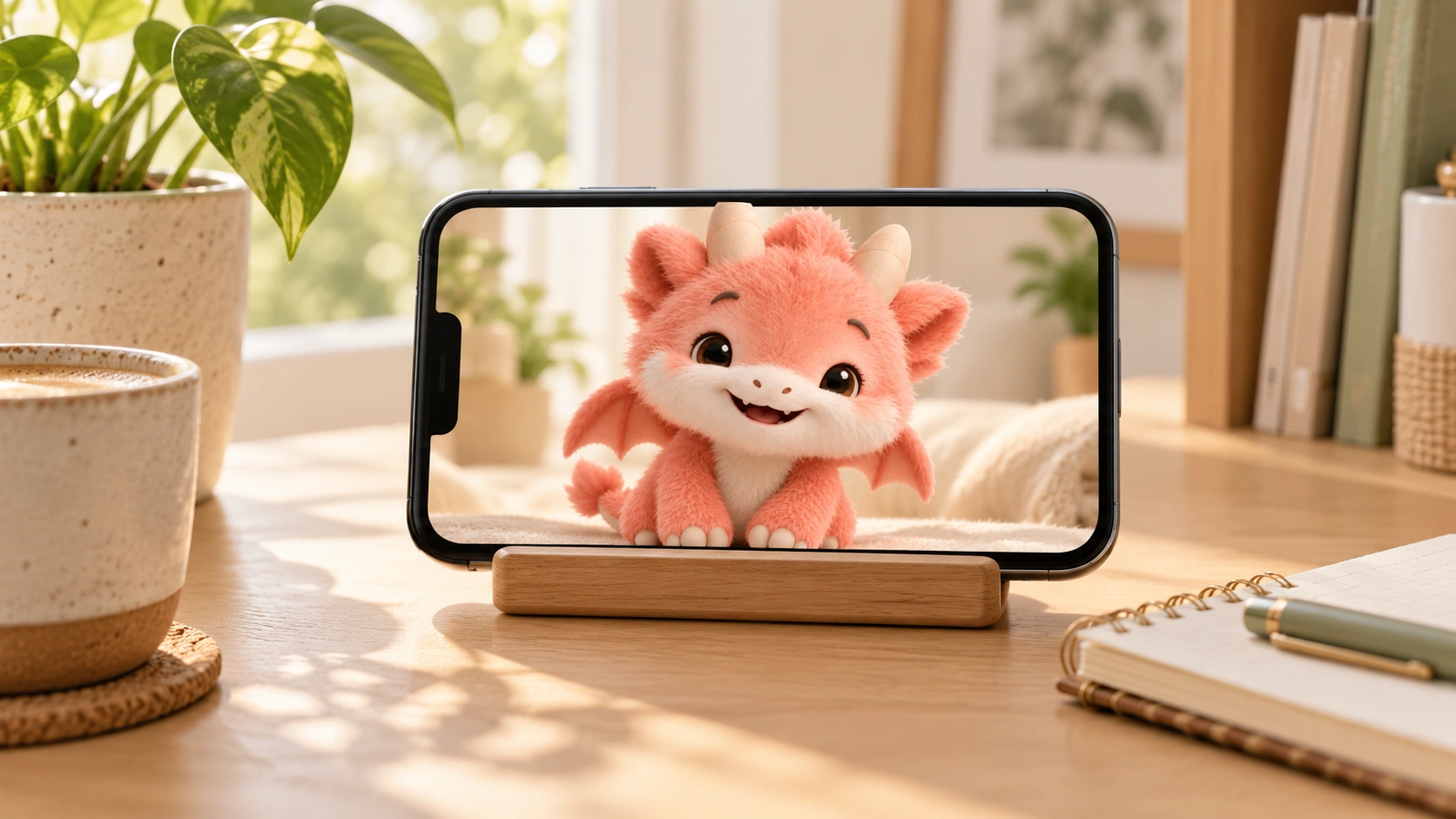
Companionship, Focus, or your PC at a glance.
The landscape focus view shows current observations, presence over the past hour, and recorded moments. From this view, swipe left for Peilo’s companion view or right for the cockpit. The cockpit shows computer information after you authorize a connection.
The phone app works on its own. Without a PC connection, PC information will not appear, but you can still use Peilo for companionship.
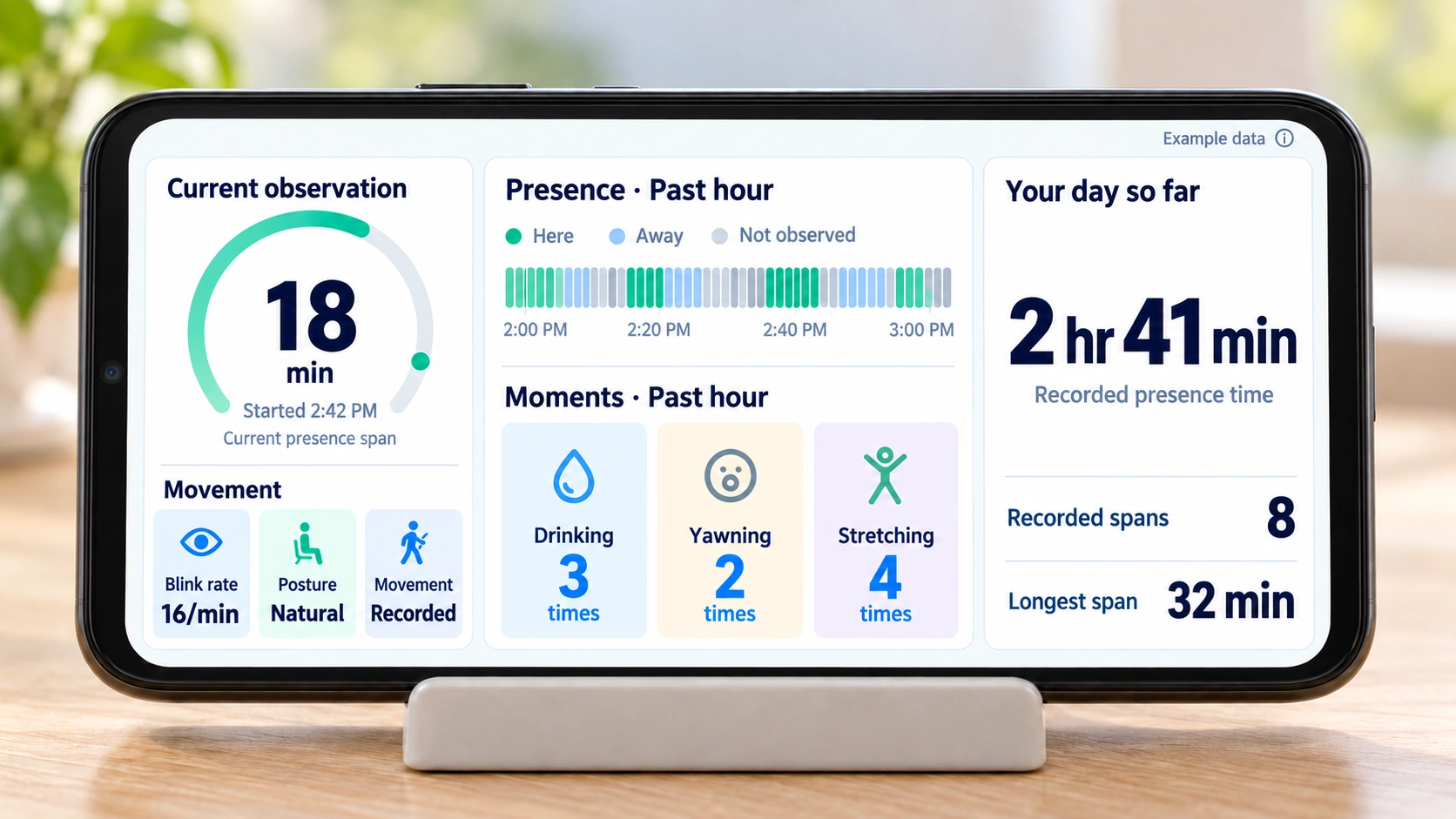
Look back on the moments Peilo recorded.
After a session, open Statistics to review recorded presence and moments such as drinking, yawning, or stretching. Obstructions, being out of view, and missing observations can leave gaps. A missing record does not mean an event did not happen.
These records reflect what the camera could observe; they do not assess your health or ability to concentrate. Time tracked by the timer is separate from camera observations.
Camera frames stay on your phone.
Grant camera access when you want local observations. Raw frames are processed on the phone without being saved or uploaded. Revoking camera access disables those observations; timing alone does not create observation records. PC connection and history sync require separate authorization.
Current availability.
The Android app is currently in small-scale testing and is not yet available for public download. Join the early access list to hear about opportunities to try it. Invitations will depend on availability.
Phone instructions · Data and privacy · Optional desktop app
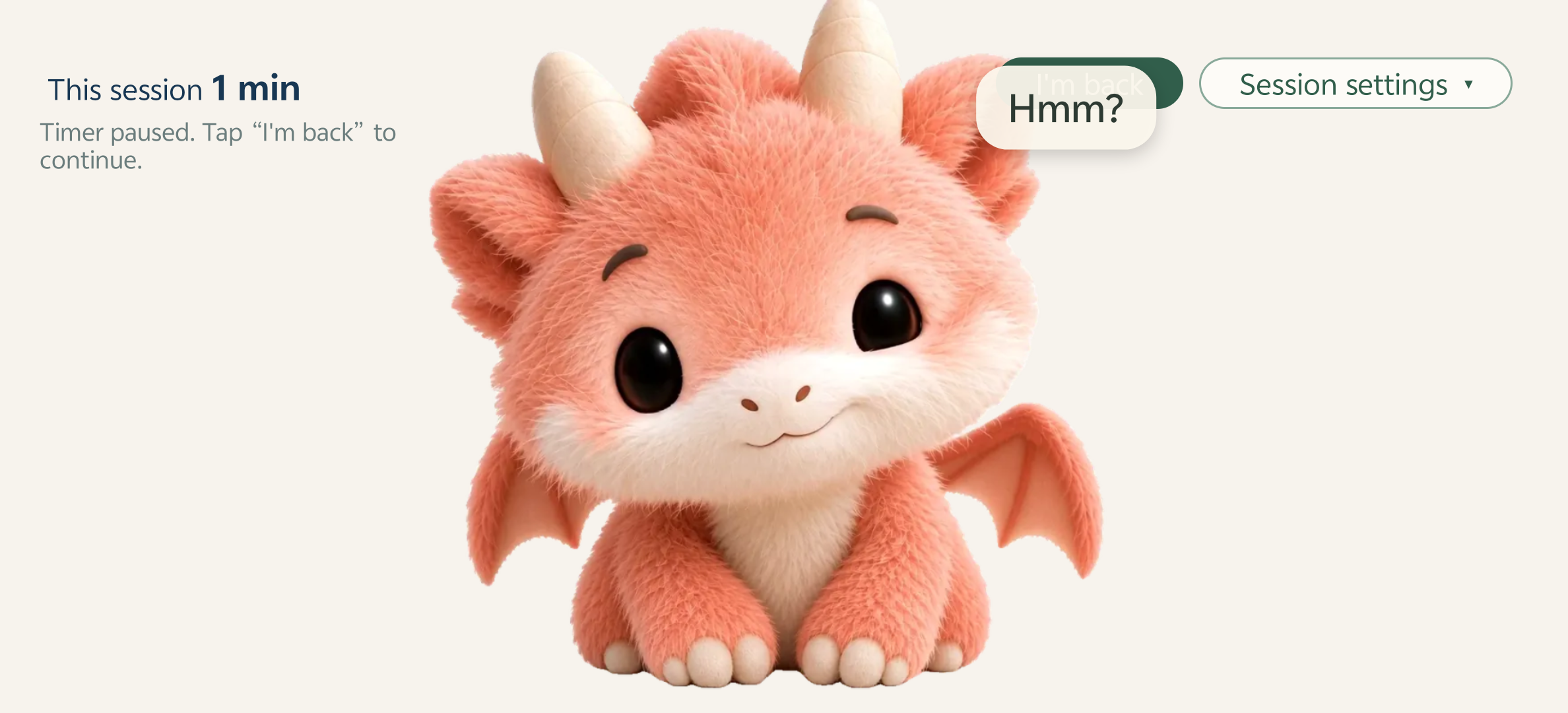
Pause a session when you step away.
In timer-only mode, pause when you step away and resume when you return. Timing and camera observation are separate choices.
- Choose timer only: start a session with camera observation switched off.
- Step away: accumulated time stops increasing while paused.
- Return: resume the timer. The camera stays off unless you choose to turn on observation.
- End: finish the session and open Statistics to review recorded time and moments. Timer-only mode does not create camera observations.
About this page
This page covers the Phone 0.2.3 preview. Screens and controls may change between versions; refer to the app you are using.
Maintained by AnyoneKit · Updated October 6, 2026