Common questions
What is Peilo?
Peilo is a companion app for time at your desk. The phone app keeps you company during sessions you choose and records moments it can observe. The optional desktop app helps you review AI activity and collaboration. You do not need to buy a separate device.
Do I need both a phone and a PC?
No. Each app can be used independently. Phone companionship does not require a PC, and Peilo PC does not require a phone. To view PC information on your phone, you’ll need to connect the apps. Syncing past phone records requires a separate confirmation. Connection instructions.
Are camera images uploaded?
Camera images are processed on your phone without being saved or uploaded. The app can save records such as time at your desk and observed activities on your device. Syncing these records requires your permission. If you request an AI insight, selected work excerpts and phone records you have agreed to sync may be sent to the AI service. Camera images are not included. Data and privacy.
Can I calculate my remaining Codex allowance from token usage?
Not directly. Local token records and official account allowance may use different sources and time windows. Check the official usage dashboard for your remaining allowance, and local records for past token usage. A missing record does not mean no usage, and an old reading may no longer be accurate. Worked example.
Getting started
Choose how to use Peilo.
Phone on its own: place your phone nearby and start a session when you want company. Afterward, review the time and the moments the app recorded.
Computer on its own: review available AI activity, usage information, and local work history on your computer.
Both apps: connect them only if you want the phone to show computer status or want to include phone records in a PC review after agreeing to sync them. Pairing is optional.
Peilo is not yet available for public download. When trials open, we will explain which systems are supported and how to install the apps.
Open the computer app for the first time.
After the computer app is available for your system, complete its first-run explanation and choose whether to allow local statistics. You can leave without starting collection.
- Use the dashboard to check available session and usage information, including its source and update status.
- Open Work Process to review recent work summaries, daily activity, and collaboration patterns.
- Return to the original conversation to confirm what happened. A summary or category is not proof that a task is complete or that a particular amount of time was spent working.
Some account-level usage information depends on the account service and an internet connection. Local work history can be incomplete or unavailable; empty data is not the same as zero usage.
Understand Codex limits and usage → A practical way to review AI work →Connect the apps only when you need both.
- Keep both devices available on the same local network and open the connection flow shown in the apps.
- Confirm the pairing request on the device that receives it. Do not share a pairing code with someone else.
- If you want historical phone records on the computer, review and authorize that sync separately. A connected status alone does not mean history has transferred.
If the apps cannot see each other, check the local network, device permissions, and any pending confirmation. Do not disable your firewall as a first troubleshooting step.
Using the phone app
Start a session when it suits you.
- Open Peilo and choose when you want a session to begin. Peilo does not require an all-day session.
- Place the phone where you are comfortable having it nearby. Grant camera access only when the feature asks for it and you choose to use it.
- End the session when you are ready. Open Statistics to review your time and recorded moments.
Records may be incomplete. A missing record does not mean an activity did not happen. These counts do not assess your health or measure your ability to focus.
Switch between three landscape views.
From the focus view, swipe left for companionship or right for the cockpit. You can use companionship and observations without a PC; PC information appears after you connect the apps and confirm sharing. Review records in Statistics afterwards. Missing observations are not evidence that nothing happened; timing alone does not create camera observations.
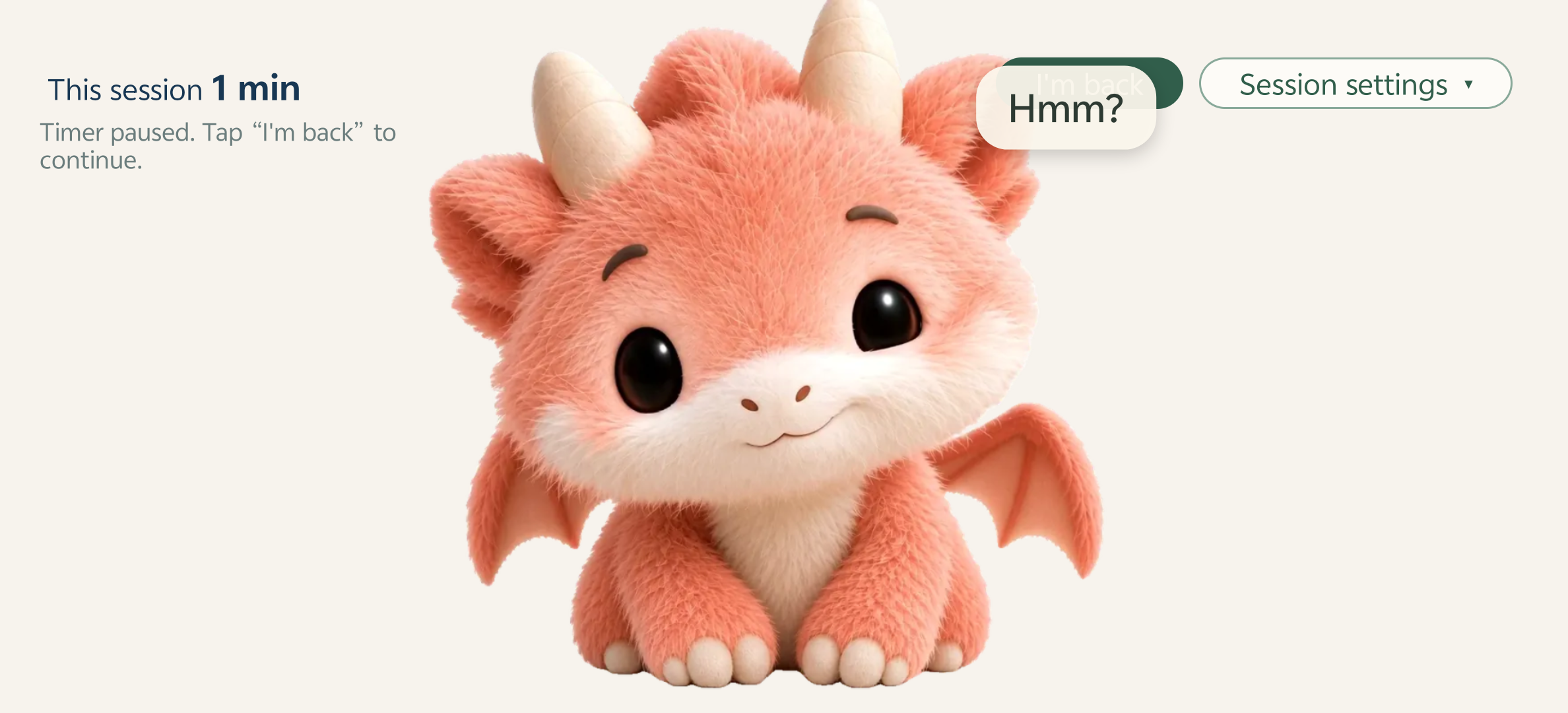
Pause a session when you step away.
In timer-only mode, pause when you step away and resume when you return. Timing and camera observation are separate choices.
- Choose timer only: start a session with camera observation switched off.
- Step away: accumulated time stops increasing while paused.
- Return: resume the timer. The camera stays off unless you choose to turn on observation.
- End: finish the session and open Statistics to review recorded time and moments. Timer-only mode does not create camera observations.
Using the computer app
Check sessions, usage, and work history.
Open the dashboard to check available sessions, recent usage, and remaining allowance. Open Work Process to review recent conversations and collaboration patterns. Check the source and time window before comparing numbers.
Missing records, a read error, and zero usage are different states. Usage and conversation counts do not measure the value of your work.
Set up optional AI insights.
In My Peilo, open the DeepSeek settings and use the official API key link. Paste your key into the app’s dedicated field, then choose Verify and save. An API key is different from your chat account password.
After checking the connection and service balance, open Work Process to request an insight. Local statistics remain available without this setup.
Read what an AI request sends. Keep your API key private and do not send it in a support request.
Review records with their limits in view.
Phone records describe what was observed during the session; coverage can be affected by placement, lighting, and obstruction. Computer summaries describe available local records and their classification. Neither is a complete account of your day.
- Check the time window and data source before comparing values.
- If a reading is missing or out of date, check the source before using it.
- Use original records to verify a summary before drawing conclusions.
Help and privacy
Troubleshooting.
The computer app shows no work history.
Check whether the current operating-system account has local Codex history, whether first-run permission was completed, and what the source-status panel says. A new account may have no earlier history; a read error is a different state from an empty history.
Pairing does not complete.
Confirm both devices are on a network that permits local device communication, check for a pending approval, and review the app's network permissions. Keep the pairing code private.
The phone and computer show different records.
Check whether history sync was separately authorized and completed. Local phone observations and computer work records cover different sources and time windows, so they may not match.
A phone observation seems inaccurate.
Placement, lighting, distance, and obstruction can affect observations. Records can be missed; do not repeat an action solely to make a counter change, and do not treat the count as a health judgment.
What should I include in a support request?
Include app and operating-system versions, the steps you took, what you expected, and the exact error. Remove private work content, credentials, API keys, and pairing details from screenshots.
Camera processing and records.
Phone camera frames are processed locally for the selected experience and are not saved or uploaded as raw images. Phone observations and computer records have separate sources. Connecting devices and syncing history are optional permissions with different purposes.
Read the full privacy explanation before enabling a connection. Do not include private conversations, API keys, pairing codes, or account credentials in a support report.
About this page
This guide covers the Phone 0.2.3 preview and the Peilo PC preview. Controls may differ between versions; screenshot dates appear in the captions. Peilo is not yet available for public download.
Maintained by AnyoneKit · Updated October 6, 2026